Group Photos Break With Three or More People — How to Hold Every Face
A selfie edit and a couple edit usually come back looking like the people in them. Then you try the family photo, or the five of you at the reunion, and someone’s cousin has a new nose, the person on the end has become a stranger, and there is an extra hand on somebody’s shoulder.
Nothing new has gone wrong. A group stacks up the problems a portrait has and makes each one harder to hold.
Why Groups Fail Where Portraits Do Not
Three things change as you add people.
Each face gets smaller. A portrait gives one face most of the frame. In a group shot of five, each face is a small patch of pixels, and the model has much less to work from when it redraws it. Small faces are where likeness slips first.
The model has to hold several identities at once. It is easy for features to blend between people who look alike — siblings, parents and children — or for one face to be redrawn as a generic version of the others.
The edges and the back get less attention. In our own group hug clip, the person in the middle held up best. The people in the back row were the ones that got covered.
Fix 1: Make the Identity Clause Plural
This is the most common mistake, and the easiest one to fix. A prompt written for a selfie says “keep my exact facial features”. Paste it onto a group photo and that clause now protects nobody in particular.
Seven of our 78 prompts phrase the identity clause for a group — “everyone”, “every person”, or “every face” — and they are the family, restoration and old-photo video prompts. If you are adapting anything else, rewrite the clause:
Keep everyone's exact facial features unchanged — every person
in the photo must stay recognisably themselves. Do not swap,
merge or beautify any face, and do not add or remove anyone.
The prompt generator has a “Family / group” subject option that puts a plural clause in for you.
Fix 2: Say How Many People There Are, and Where
The model works from the picture, but it does not count very carefully. Naming the count and the positions gives you an explicit claim to check the result against:
There are five people in this photo. From left to right: a woman
in a white top, a man in a navy shirt, a woman in a grey
T-shirt, a second man in navy, a woman with long dark hair.
Keep all five, in the same order.
This guarantees nothing. It makes a missing or duplicated person easy to spot, and easy to ask for back by position.
Fix 3: Start From the Biggest, Sharpest Group Photo You Have
Because each face is small, source quality matters more here than anywhere. Use the original file, not a screenshot or a copy compressed by a messaging app. Trim empty space around the group so the people fill the frame, without cutting anyone at the edge.
If one face is blurry or turned away in the source, the edit cannot recover it. It will invent one.
Fix 4: Tell Everyone Where to Look
Group prompts that describe a mood often get read as stage directions.
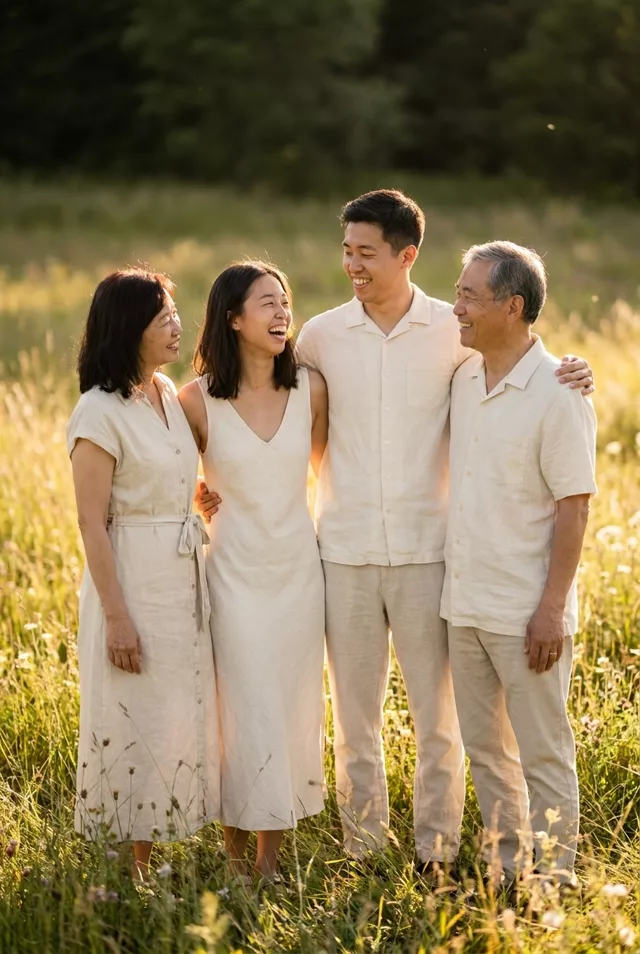
If you want a portrait rather than a candid, say so in a line of its own: “everyone looking at the camera, faces fully visible, no one turned away.” Turned heads also hide faces, and a hidden face is one you cannot check.
Fix 5: In Video, Contact Is the Problem
Animating a group is harder than editing one, and the hardest motion is people touching. Every arm around a shoulder is a limb the model must keep attached to the right body for the whole clip.
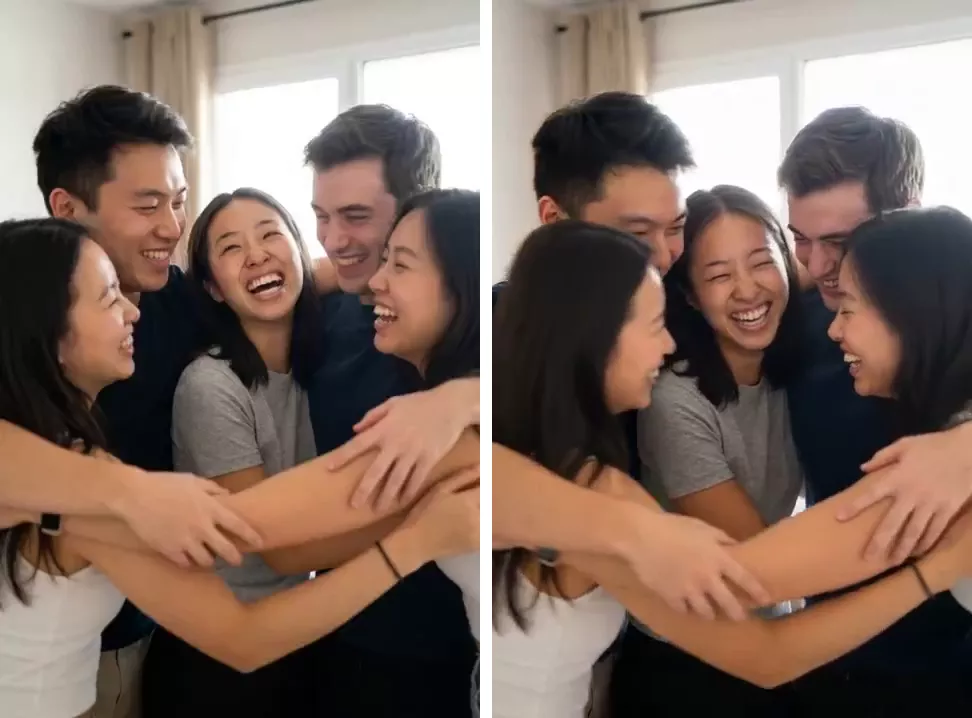
What helps:
- Fewer people. Three is far easier than five. If the clip matters more than including everyone, use a smaller group shot.
- Motion without contact. Laughing, leaning in slightly, turning toward each other — all of these keep bodies separate.
- Shorter clips. Drift builds over time, so a short clip gives it less room.
Everyone in the photo laughs and leans in slightly toward the
centre. No hugging, no arms crossing between people, everyone
keeps their own hands visible. Keep every face exactly as in the
photo. Gentle motion, 5 seconds.
Then check the clip at three points, not just the poster frame: the start, the middle, and the end. In ours, the two faces that end up covered are fully visible in the first frame.
Fix 6: Fix One Person at a Time
If the result is right except for one face, do not regenerate the whole image and hope. Edit the result you have, and name the person by position:
Keep this image exactly as it is. Only change the face of the
person on the far right so it matches the original photo I
uploaded first. Do not change anyone else.
Upload the original alongside the result so the tool has a reference. A targeted fix leaves the faces that were already right alone; a full regeneration can break a different one.
One more thing that matters more with groups: everyone in the photo should be fine with being edited and posted. A group photo means more people’s consent, and more people who may not want an AI version of themselves online. Label the result as AI-edited when you share it. The full prompt library has the family, restoration and group video prompts mentioned here.
FAQ
Is there a maximum number of people an AI edit can handle?
There is no fixed limit, and it varies by tool and by how large each face is. As a working rule, the more people there are, the more likely at least one face drifts. Small groups with large faces do best.
Why does the person on the end always look different?
Faces at the edges and in the back are usually smaller and lit differently, so there is less detail to keep. Naming that person’s position in the prompt, and fixing them on their own afterwards, keeps the faces that were already right.